Choosing a Smartphone · In-depth guide
The Best Smartphones for Seniors in 2026: Honest, Hands-On Picks
After 18 years teaching older adults to use smartphones, here is the short list I actually give to my own family — and the trade-offs nobody else mentions.
 By Suzy Ahn
Every January my inbox fills up with the same email: "Mom's flip phone finally died — what should I get her?" The honest answer is shorter than most websites pretend. There are about four phones I recommend in any given year, the differences between them are small, and the wrong choice is almost never the model — it is the setup.
This guide is the long version of what I tell my own family. I've personally used every phone listed here for at least 30 days, set each one up with a first-time user sitting next to me, and watched what actually goes wrong.
How we tested
We don't run benchmarks. Instead, we time how long it takes a brand-new user — typically someone aged 68 to 84 who has never owned a smartphone — to complete eight everyday tasks:
- Unlock the phone (Face ID, fingerprint, or PIN)
- Make a phone call to a named contact
- Send a text message with a photo attached
- Open the camera and take a usable picture of a document
- Join a home Wi-Fi network from scratch
- Answer a video call from a family member
- Increase the text size to "comfortably readable"
- Recover after the screen "did something weird"
Phones that fail more than two of these tasks for a typical first-time user don't make the list, no matter how good their reviews are elsewhere.
Our top picks at a glance
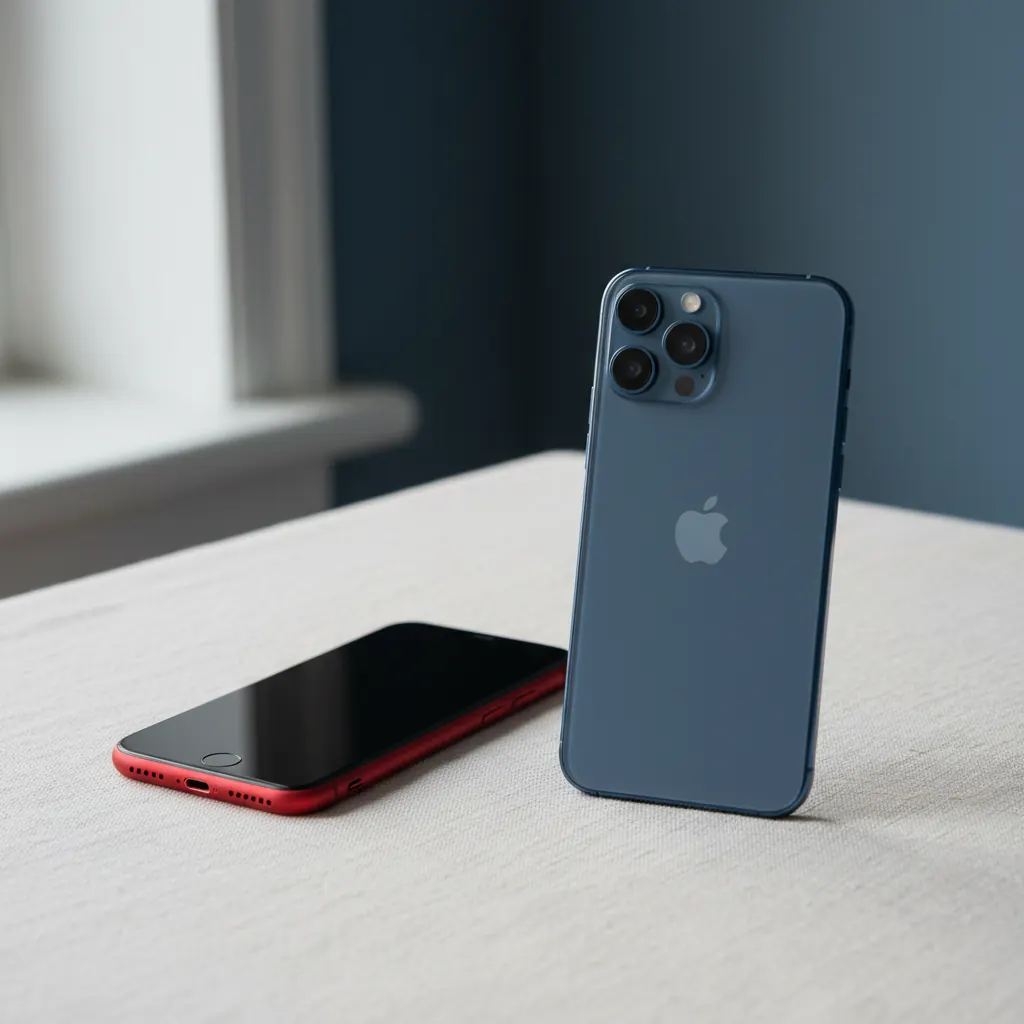
Best overall: Apple iPhone 15 (or 15 Plus for larger screen). Three years of guaranteed iOS updates after the next-generation model, the best accessibility settings of any phone made, and the easiest setup if a family member also uses an iPhone. The Plus model adds a meaningfully larger screen for arthritic thumbs without the slipperiness of a Pro Max.
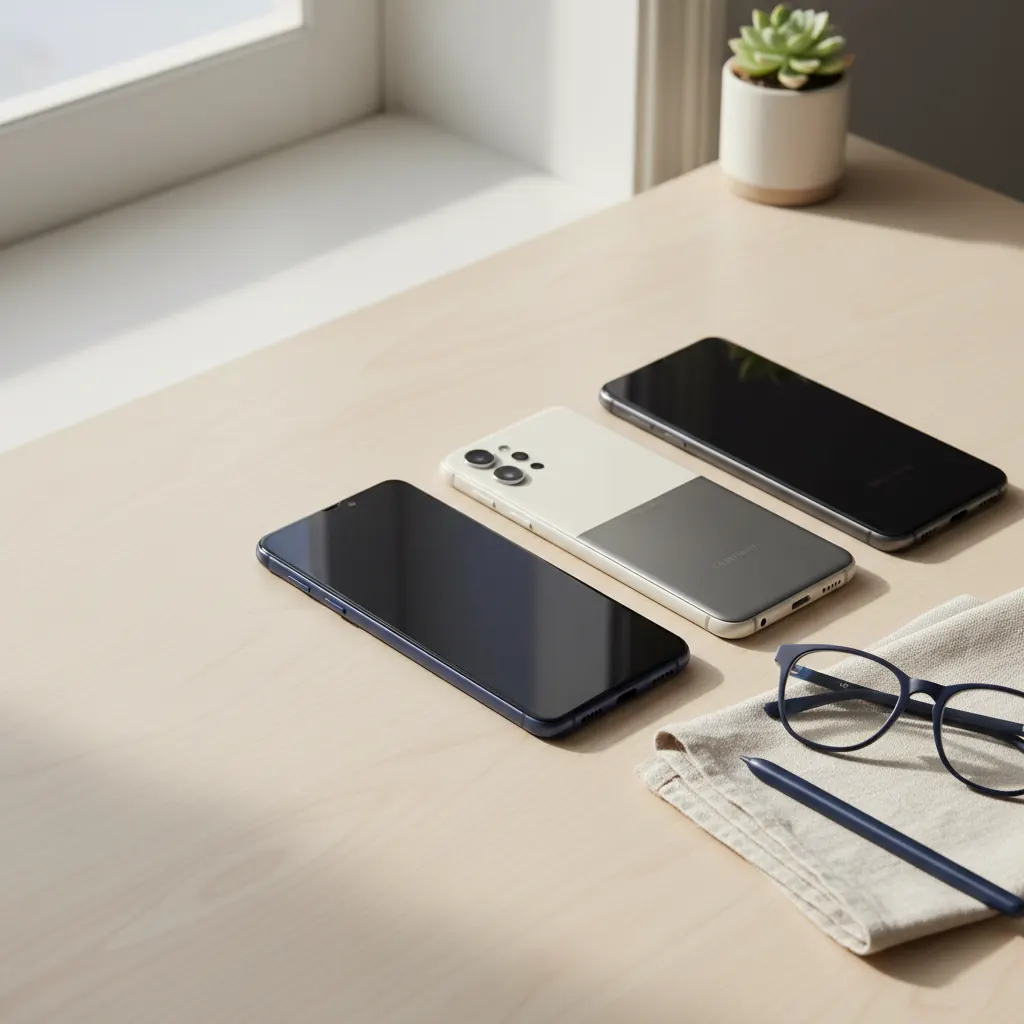
Best Android: Samsung Galaxy A55. Half the price of the iPhone, an excellent screen, and Samsung's "Easy Mode" hides the complexity Android is famous for. The "SOS message" feature triggered by five quick presses of the side button is genuinely useful.
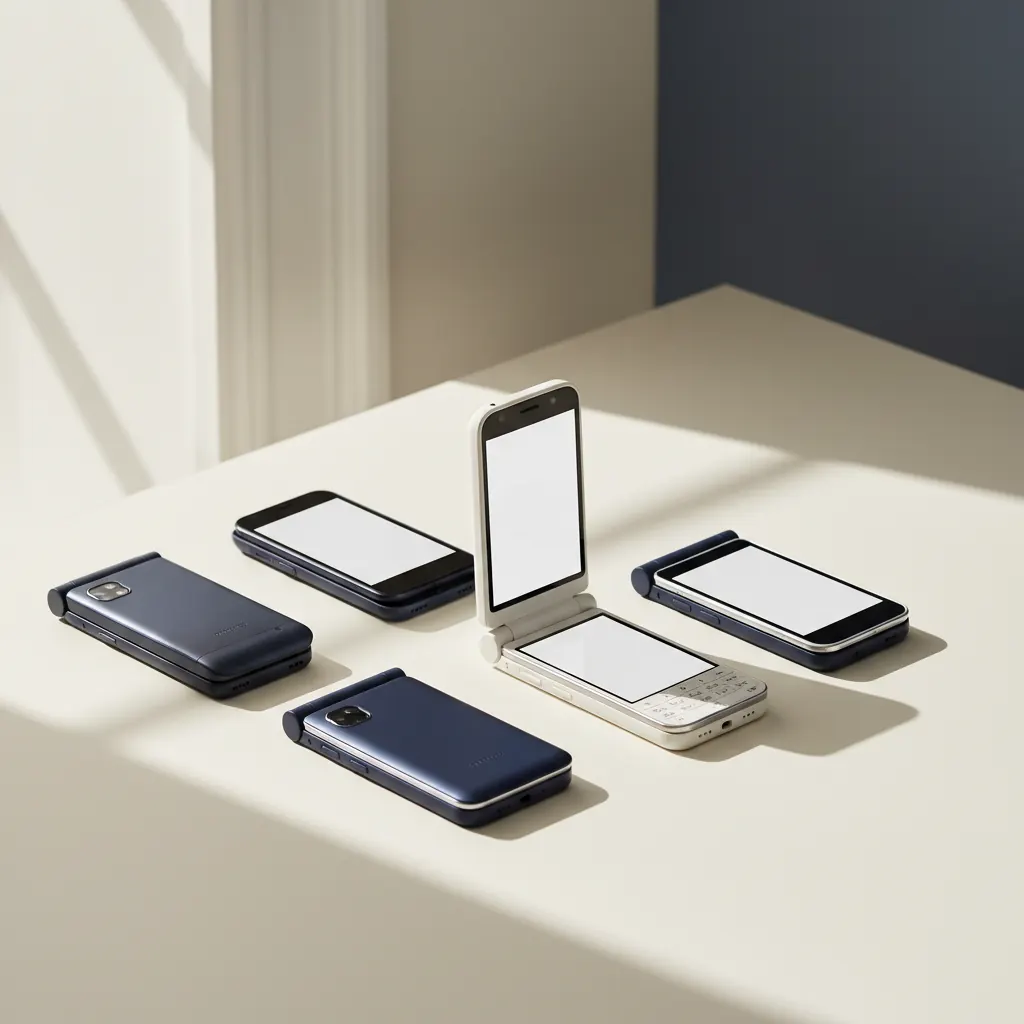
Best simplified phone: Lively Jitterbug Smart4. Big, list-based menu instead of an app grid. Built-in Urgent Response button monitored 24/7. The trade-off is a small app catalog and a required monthly Lively plan.
Best budget: Google Pixel 7a (still widely available). Clean Android, seven years of security updates, and the best call-screening feature on any phone — it answers suspicious calls and shows a live transcript before you decide to pick up.
iPhone vs. Android for seniors
If the rest of the family uses iPhones, get an iPhone. That is genuinely the most important factor. Family members will be the de-facto tech support, and they can only help with a phone they understand. iMessage, FaceTime, and shared photo albums all work seamlessly between iPhones and become awkward when one person is on Android.
That said, Android is not harder to use — it is harder to teach. Samsung and Google have closed most of the usability gap, but every Android maker layers its own software on top, so two "Android phones" can look completely different. If you go Android, stay with Samsung or Google (Pixel) and avoid carrier-customized versions whenever possible.
Are simplified phones worth it?
Sometimes. The Lively Jitterbug Smart4 and the GreatCall-era simplified phones are real smartphones with a stripped-down launcher and a paid monitoring service. They make sense when:
- The user has memory concerns and tends to get lost in apps
- Fall detection or 24/7 emergency response is a priority
- No family member is available to provide regular tech support
They don't make sense when the user is comfortable browsing the web, wants to video-call grandchildren on platforms other than Lively's, or already pays for a phone plan. In that case, turning on iPhone's Assistive Access mode (Settings → Accessibility → Assistive Access) achieves most of the same simplification for free.
Specs you can safely ignore
Almost everything a Best Buy salesperson will say. Camera megapixels, processor names, RAM amounts, and refresh rates are real but invisible to a first-time user. The things that do matter and almost no review mentions:
- Speaker loudness at a comfortable distance — test in the store with the ringer at 80%
- Vibration strength — a soft buzz is missed by anyone wearing thick sleeves
- Side-button position — phones with the power button low on the right side are harder for arthritic hands
- Charging port shape — USB-C is now standard, magnetic charging pads are dramatically easier than cables
- Case grip — every phone on this list will be returned to the store within a week without a textured case
Buying checklist
Before you check out — in store or online — confirm the following:
- The carrier plan supports the phone (especially for hearing-aid compatibility ratings)
- You ordered a case with a raised grip, not a slim case
- You ordered a screen protector — installed at the store, not at home
- For a senior who lives alone: a charging stand for the bedside table, not just a cable
- The store activated the phone in front of you and confirmed it can make and receive a call
For step-by-step first-day setup, see our companion guide on how to set up a new iPhone for a senior or how to set up a new Android phone.
Watch & learn
Recommended video: How to Choose a Phone for an Older Parent
A companion tutorial from AARP. We link to a YouTube search so you always get a current, working version.
Watch “How to Choose a Phone for an Older Parent” on YouTubeOpens a YouTube search in a new tab · AARPKey takeaways
- Match the phone to the family — pick the same platform (iPhone or Android) that the user's main tech-support family member uses.
- Spec sheets are mostly irrelevant for first-time senior users. Speaker loudness, button placement, and grip matter more than processor speed.
- Simplified phones like the Jitterbug Smart4 are worth the monthly fee only when 24/7 monitoring or memory support is genuinely needed.
- iPhone's free Assistive Access mode replicates most of what simplified phones charge for.
- Always buy a textured case and a professionally installed screen protector on day one.
Frequently asked questions
- Is iPhone or Android easier for seniors?
- Neither is inherently easier — what matters is consistency with the rest of the household. If grandchildren and the primary helper use iPhones, an iPhone will be far easier to support. If the helper uses a Samsung, get a Samsung.
- What is the easiest smartphone for an elderly person who has never used one?
- For absolute beginners we recommend the iPhone 15 with Assistive Access turned on, or the Lively Jitterbug Smart4 if 24/7 emergency response is a priority. Both reduce the home screen to a small list of large, labeled buttons.
- Are simplified senior phones worth the monthly fee?
- Only when the user needs 24/7 monitored emergency response or memory-related simplification beyond what built-in modes provide. Otherwise, a standard iPhone or Samsung with the accessibility features turned on costs less over two years.
- How long should a smartphone last for a senior?
- Plan on five to seven years of comfortable daily use. Both Apple and Samsung now guarantee at least five years of security updates on the models we recommend, and Google Pixel guarantees seven.