Setup & Basics · Quick guide
Transferring Contacts from an Old Phone to a New One
Switching to a new smartphone is exciting, but the thought of moving all your precious contacts can feel daunting. Don't worry, I'm here to show you just how simple it can be!
 By Suzy Ahn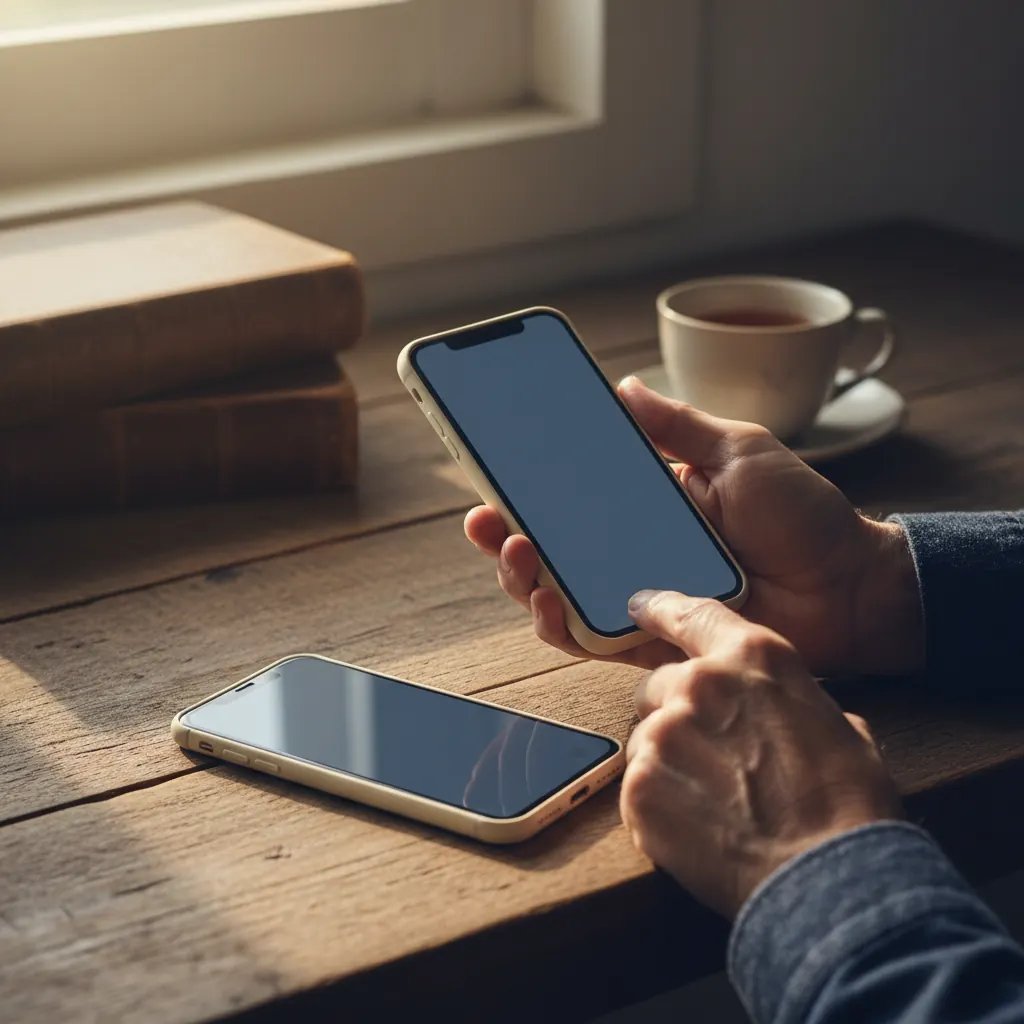
Ah, the joy of a new phone! Whether it's that sleek new iPhone 15 you've been eyeing or the latest Samsung Galaxy S24, there's a certain thrill in unboxing it, feeling its smooth surface, and anticipating all the new possibilities. But then, a familiar question often pops up, usually accompanied by a furrowed brow: 'Suzy, how do I get all my numbers from my old phone onto this new one?' It's a question I've heard countless times over my 18 years of teaching older adults about technology, and it's a perfectly natural concern. After all, our contacts aren't just names and numbers; they're our connection to family, friends, doctors, and our community. Losing them feels like losing a piece of our world.
I remember one Tuesday afternoon, vividly, during a class at the local senior center. Mildred, a sprightly 82-year-old who'd just upgraded from a very old flip phone to her first smartphone, looked utterly bewildered. Her new iPhone SE was pristine on the table, but the excitement had given way to anxiety. 'Suzy,' she said, her voice a little shaky, 'I've got all my bridge club ladies, my grandson, and my doctor in my old phone. I can't possibly type all those in again!' We all laughed kindly, understanding her worry completely. But by the end of our session, with a few simple steps, Mildred's new phone was buzzing with all her familiar contacts, and her smile was just as bright as her screen. That's the magic we're going to create today.
Moving your contacts doesn't have to be a headache. In fact, modern smartphones and their underlying systems, like Apple's iOS 17/18 and Google's Android 14/15, have made this process remarkably smooth and often automatic. The key is understanding a few fundamental concepts, primarily the magic of 'the cloud.' Think of it as a digital safe deposit box in the sky, where your important information, including your contacts, is stored securely and can be accessed from any device you sign into. No more frantic scribbling on notepads or manually typing hundreds of entries!
Why Your Contacts Are the Heart of Your Phone
Let's be honest, without our contacts, our smartphones are just very expensive paperweights. They might be able to browse the internet or take beautiful photos, but their primary purpose – connection – is lost. Your contact list is more than just data; it's your social lifeline. It holds the numbers for your children, your grandchildren's school, your hairdresser, your favorite restaurant for takeout, and perhaps even that new friend you met at the community garden. For seniors especially, maintaining these connections is incredibly important for well-being and safety. Imagine needing to call for help and not having emergency contacts easily accessible – it's a frightening thought. That's why ensuring a smooth transfer is paramount.
Over the years, I've seen some truly creative (and sometimes concerning!) methods people used to transfer contacts before the cloud became so prevalent. Cutting and pasting individual numbers one by one, writing them all down in a notebook and then typing them into the new phone, or even sending each contact to themselves as a text message. Goodness! While admirable in their resourcefulness, these methods are not only time-consuming but also prone to errors. We want to avoid all that effort and stress. Today's methods are designed to be efficient, secure, and delightfully simple, making sure every phone number and email address makes it safely to its new home.
The Cloud: Our Digital Helper for Seamless Transfers
This 'cloud' I keep mentioning might sound a bit mysterious, but it's really quite simple. Imagine a giant, super-secure filing cabinet that exists not in your home, but on powerful computers maintained by companies like Apple (for iCloud) or Google (for Google Contacts, which syncs with your Google Account). When you enable 'syncing' for your contacts on your phone, you're essentially telling your phone to regularly send a copy of your contact list to this digital filing cabinet. Then, when you get a new phone and sign into that same account, your new phone simply pulls all those contacts down from the cloud. Voila! It's like magic, but it's really just smart technology at work.
For iPhones, this crucial service is called iCloud. For Android phones, it's typically your Google Account. If you have an iPhone, you almost certainly have an Apple ID, and if you have an Android phone, you definitely have a Google Account. These are your keys to the cloud kingdom for contacts. The beauty of it is that once set up, it happens automatically in the background. If you add a new contact on your old phone today, it silently updates in the cloud. Then, when you eventually get your new phone, it will automatically download that new contact too. It's truly a set-it-and-forget-it convenience.
Before You Begin: A Quick Checklist
Before we dive into the step-by-step instructions, let's make sure you're properly prepared. A little preparation goes a long way in making this a smooth experience.
- Charge Both Phones: Make sure both your old and new phones are sufficiently charged, ideally above 50%. You don't want a phone dying in the middle of a transfer.
- Connect to Wi-Fi: Ensure both phones are connected to a strong Wi-Fi network. Transferring data over Wi-Fi is much faster and doesn't use up your cellular data plan.
- Know Your Apple ID/Google Account: This is perhaps the most critical step.
- For iPhone users: You'll need your Apple ID and password. If you've forgotten it, you can often reset it on Apple's website.
- For Android users: You'll need your Google Account (Gmail address) and password. Similarly, Google offers recovery options if you're stuck.
- Update Your Phones (Optional but Recommended): While not strictly necessary for contact transfer, having the latest operating system (iOS 17 or 18, Android 14 or 15) can ensure better compatibility and security. You can usually check for updates in your phone settings (e.g., iPhone: Settings → General → Software Update; Android: Settings → System → System update).
- Backup Your Old Phone (Highly Recommended): Before any major change, it's always wise to create a full backup of your old phone. This way, if anything unexpected happens, you have a complete copy of all your data.
- iPhone: Go to Settings → Your Name (at the top) → iCloud → iCloud Backup, and tap 'Back Up Now.'
- Android: Go to Settings → Google → Backup, and tap 'Back up now.'
This little checklist ensures everything is in place for a worry-free transfer. Once you've got these sorted, you're ready to proceed!
Transferring Contacts: iPhone to iPhone
This is probably the easiest scenario, thanks to Apple's seamless ecosystem. Most of the process happens almost automatically when you set up your new iPhone.
Method 1: Quick Start (The Easiest Way)
If your old iPhone is running iOS 11 or later, and your new iPhone is new out of the box (or factory reset), 'Quick Start' is your best friend. It uses Bluetooth to bring your devices together and transfer information directly.
- Turn on your New iPhone: Place your new iPhone near your old iPhone.
- Quick Start Prompt: Your old iPhone will display a 'Set Up New iPhone' prompt. Tap 'Continue.'
- Animation on New iPhone: An animation will appear on your new iPhone. Hold your old iPhone over the new one, centering the animation in the viewfinder, until you see a 'Finish on New iPhone' message.
- Enter Passcode: Enter your old iPhone's passcode on your new iPhone.
- Face ID/Touch ID Setup: Follow the prompts to set up Face ID or Touch ID on your new device.
- Transfer Data: Here's the magic moment! You'll see options to 'Transfer Directly from iPhone' or 'Download from iCloud.'
- 'Transfer Directly from iPhone' (Recommended if both phones are with you): This transfers everything, including your contacts, directly from one phone to the other. It's usually faster than iCloud for a full restore.
- 'Download from iCloud': If you prefer, or if your old iPhone isn't with you, you can choose this option. Your new iPhone will download all your contacts (and other data) from your iCloud backup.
- Wait for Transfer: The transfer will begin. This can take some time, depending on how much data you have, so be patient. Keep the phones close to each other.
- Completion: Once complete, your new iPhone will reboot, and all your contacts, apps, photos, and settings will be there!
Method 2: Using iCloud Backup (If Quick Start isn't an option or for restoration)
If you're not using Quick Start, or you're restoring from an iCloud backup at a later date, this is the way to go.
- Ensure iCloud Contacts Sync is On (Old iPhone): On your old iPhone, go to Settings → Your Name → iCloud. Make sure 'Contacts' is toggled ON (green). This ensures your contacts are in the cloud. If you just turned it on, give it a few minutes to sync.
- Sign In to New (or Reset) iPhone: During the initial setup of your new iPhone, when you reach the 'Apps & Data' screen, choose 'Restore from iCloud Backup.'
- Sign In with Your Apple ID: Enter your Apple ID and password.
- Choose a Backup: Select the most recent backup from your old iPhone.
- Wait: Your new iPhone will download all your data, including your contacts. This can take a while, depending on your internet speed and the size of your backup.
For more detailed information on setting up your new iPhone and getting everything just right, you might find my article on iPhone Setup for Seniors very helpful!
Transferring Contacts: Android to Android
Similar to iPhones, Android phones make moving contacts between devices very user-friendly, especially when you're staying within the Android family. The Google Account is the cornerstone of this process.
Method 1: Google Account Sync (The Most Common & Easiest)
This is the primary way Android handles contacts, and it's brilliantly simple.
- Verify Contacts Sync (Old Android Phone): On your old Android phone, go to Settings → Accounts (or Users & accounts) → Google. Tap on your Google Account. Make sure 'Contacts' is toggled ON (or checked, depending on your Android version). If it's not, turn it on and then tap 'Sync now' or the three dots menu to initiate a sync. Give it a few minutes to ensure everything is uploaded to Google's cloud.
- Set Up New Android Phone: When you first set up your new Android phone, you'll be prompted to sign in with your Google Account.
- Sign In: Enter the same Google Account email address (your Gmail) and password that you used on your old phone.
- Restore Options: During the setup, you'll usually get an option to 'Restore from your previous device' or 'Copy your data.' Choose this option.
- Select Data to Restore: Make sure 'Contacts' is selected (it usually is by default).
- Wait: Your new phone will then download all your synchronized contacts, along with other settings and apps you choose, from your Google Account.
Method 2: Using a Cable (Samsung Smart Switch, etc.)
Many Android manufacturers, especially Samsung, offer their own transfer tools that can use a cable for a direct transfer. Samsung's Smart Switch is a prime example.
- Install Smart Switch (if not pre-installed): On both your old and new Samsung phones, ensure you have the Smart Switch app installed. Most new Samsung phones come with it.
- Connect Phones: Using a USB-C to USB-C cable (or a USB-A to USB-C adapter if your old phone has a different port), connect the two phones.
- Launch Smart Switch: Open Smart Switch on both phones.
- Select 'Send Data'/'Receive Data': On your old phone, choose 'Send data.' On your new phone, choose 'Receive data.'
- Choose Transfer Method: Select 'Cable.'
- Select Data: On the old phone, select 'Contacts' (and any other data you wish to transfer).
- Start Transfer: Confirm the transfer. The data will move directly between the phones.
If you're delving into a new Android phone, I've got a comprehensive guide to help you get acquainted: Android Setup for Seniors.
Transferring Contacts: Android to iPhone
Moving between different operating systems used to be a real hurdle, but Apple and Google have made it surprisingly smooth. The 'Move to iOS' app from Apple is designed specifically for this transition.
- Prepare Your Android Phone:
- Ensure your Android phone is connected to Wi-Fi.
- Make sure Chrome bookmarks are updated (if you want to transfer them).
- If you're using a micro-SD card, remove it before starting.
- Crucially, ensure your Google Contacts are synced to your Google Account (Settings → Accounts → Google → Your Account → Contacts toggle ON).
- Set Up New iPhone: Begin setting up your new iPhone. When you get to the 'Apps & Data' screen, choose 'Move Data from Android.'
- Install 'Move to iOS' App on Android: On your Android phone, download and open the 'Move to iOS' app from the Google Play Store. Tap 'Continue,' read the terms and conditions, then tap 'Agree.' Tap 'Next' in the 'Find Your Code' screen.
- Get Code from iPhone: On your iPhone, tap 'Continue' on the 'Move from Android' screen. A ten-digit or six-digit code will appear.
- Enter Code on Android: Enter this code into your Android phone.
- Connect to Temporary Wi-Fi: Your iPhone will create a temporary Wi-Fi network. Tap 'Connect' when prompted on your Android phone to join this network.
- Choose Data to Transfer: On your Android phone, you'll see a 'Transfer Data' screen. Select 'Contacts' (and any other items like messages, photos, calendar accounts, etc.) and tap 'Next.'
- Wait for Transfer: The data will transfer from your Android to your iPhone. The progress bar on your iPhone will complete. Even if your Android says it's done, wait for the iPhone progress bar.
- Complete iPhone Setup: Once the transfer is done, tap 'Done' on your Android phone. Then, on your iPhone, tap 'Continue Setting Up iPhone' and follow the remaining on-screen instructions to finish setting up your Apple ID, Face ID/Touch ID, etc.
All your contacts should now be nestled comfortably in your new iPhone!
Transferring Contacts: iPhone to Android
Moving from the Apple garden to the Android open field is also quite straightforward, thanks primarily to Google's excellent cloud services.
Method 1: Syncing Contacts to Google Account (Recommended & Easiest)
This is my preferred method because it's reliable and uses the cloud, making future transfers easy.
- Export iCloud Contacts to Google (on your iPhone):
- Go to Settings → Your Name (at the top) → iCloud.
- Make sure 'Contacts' is toggled ON. This ensures your contacts are in iCloud.
- Now, here's the clever trick: You can also add your Google Account to your iPhone and tell it to sync contacts.
- Go to Settings → Contacts → Accounts → Add Account → Google.
- Enter your Google Account (Gmail) and password.
- Once added, tap on the Google Account you just added and ensure 'Contacts' is toggled ON.
- Here's the critical part: Go back to Settings → Contacts → Default Account. If you want future contacts to sync to Google, choose your newly added Gmail account. For now, we want existing contacts to move.
- The easiest way for many is to ensure all your contacts are in iCloud first. Then, go to iCloud.com on a computer, sign in with your Apple ID, click 'Contacts,' select all contacts (Ctrl+A on Windows, Cmd+A on Mac), and then click the gear icon in the bottom left. Choose 'Export vCard.' This will download a .vcf file to your computer.
- Now, go to contacts.google.com on the same computer, sign in with the Google Account you'll use on your new Android phone. Click 'Import' on the left sidebar, choose 'Select file,' and upload the .vcf file you just exported from iCloud. This will populate your Google Contacts with all your iPhone contacts.
- Set Up New Android Phone: During the initial setup of your new Android phone, when prompted, sign in with the SAME Google Account you just populated with your contacts.
- Restore Data: When presented with the option to restore data, ensure 'Contacts' is selected. Your Android phone will download all your contacts from your Google Account.
Method 2: Using the 'Share Contact' Feature and a Computer (For a few contacts or if you avoid the cloud)
If you only have a handful of contacts to move and prefer not to use cloud services for some reason, you can do it this old-fashioned way.
- On your iPhone: Open the 'Contacts' app.
- Select a Contact: Tap on the contact you want to share.
- Share Contact: Scroll down and tap 'Share Contact.'
- Email or Message: Choose 'Mail' or 'Messages.' Emailing to yourself is usually best. Send the contact to your own email address (the one you'll access on your new Android).
- On your Android Phone:
- Open the email you sent to yourself.
- Open the attached .vcf file.
- Your Android phone will ask if you want to import this contact. Confirm, and it will be added to your contacts.
This method is really only practical for a very small number of contacts. For a full list, Method 1 is far superior.
A Final Word of Encouragement
See? That wasn't so bad, was it? The world of smartphones is designed to be helpful, not a hindrance. Once you understand the basic principles, especially the power of your Apple ID and Google Account, these tasks become much less intimidating. It's a bit like learning to drive; at first, it seems complex, but with practice, it becomes second nature.
Remember Mildred from my class? She now confidently sends group texts to her bridge club, calls her grandson on FaceTime, and organizes her doctor's appointments all from her 'new' iPhone. Her contacts, once a source of anxiety, are now her digital address book, connecting her to everyone she cares about. You can achieve that same confidence.
If you're ever feeling overwhelmed with the choices of new phones, remember to consider what truly matters to you. Features like clear displays and simple interfaces can make a big difference. I've covered some excellent options in my article on Best Smartphones for Seniors if you're curious about different models.
My best advice is to take your time, follow these steps patiently, and don't hesitate to ask for help from a trusted family member or, if you're lucky enough, a friendly tech educator like me! Your new phone is waiting to connect you to the world, and your contacts are the key to unlocking that connection. Happy transferring!
Watch & learn
Recommended video: How to Set Up a New Smartphone for an Older Adult
A companion tutorial from Cyber-Seniors. We link to a YouTube search so you always get a current, working version.
Watch “How to Set Up a New Smartphone for an Older Adult” on YouTubeOpens a YouTube search in a new tab · Cyber-SeniorsKey takeaways
- Transferring contacts to a new phone is much easier with modern smartphones thanks to cloud services.
- Apple ID (iCloud) for iPhones and Google Account for Androids are essential for seamless contact syncing.
- Always charge both phones, connect to Wi-Fi, and know your account credentials before starting a transfer.
- iPhone users can use 'Quick Start' for direct transfer or restore from iCloud backup.
- Android users primarily rely on Google Account sync; manufacturer tools like Samsung Smart Switch also offer direct transfers.
Frequently asked questions
- What if I forgot my Apple ID or Google Account password?
- Both Apple and Google provide robust account recovery options. For Apple ID, visit iforgot.apple.com. For your Google Account, go to accounts.google.com/signin/recovery. It's crucial to have access to your recovery email or phone number.
- Do I need to backup my old phone before transferring contacts?
- While contact transfers are usually reliable, a full phone backup is always a good practice before any major change. It ensures all your data, not just contacts, is safe in case of an unforeseen issue.
- Can I transfer contacts if my old phone is broken?
- If your old phone screen is cracked but it still turns on, connects to Wi-Fi, and you know your password, your contacts might have already synced to the cloud (iCloud or Google Contacts). If so, you can restore them to your new phone by signing into your account. If the phone is completely non-functional, recovering contacts becomes much more challenging and might require professional data recovery services.
- What happens if I have duplicate contacts after transferring?
- Sometimes, if contacts come from multiple sources, you might end up with duplicates. Both iPhone (in the Contacts app, you might see 'Duplicates Found' at the top) and Google Contacts (contacts.google.com has a 'Merge & Fix' option) offer tools to merge or clean up duplicate entries. It's a good idea to tidy up your contact list after a transfer.
- Is it safe to transfer my contacts using these methods?
- Yes, using iCloud, Google Account sync, or manufacturer apps like Smart Switch are secure methods. They use encrypted connections to protect your data. Always stick to official methods and avoid third-party apps unless they are highly reputable.