Apps for Seniors · In-depth guide
The Best Video-Calling Apps for Seniors in 2026
We installed every major video-calling app on phones belonging to four first-time senior users and watched what happened over a month. Here is what worked.
 By Suzy Ahn
Video calling is the single feature that earns a smartphone its keep for most seniors. We installed and used FaceTime, WhatsApp, Facebook Messenger, and Zoom for 30 days each with four first-time users aged 71 to 86. Here is what we learned.
What actually matters
The "best" video app isn't the one with the most features. It is the one the senior's family is already using, and the one that requires the fewest taps to answer a call. We graded each app on three things: incoming-call clarity, the number of taps from notification to "I can see and hear my granddaughter," and how often the app updated itself in a way that moved buttons.
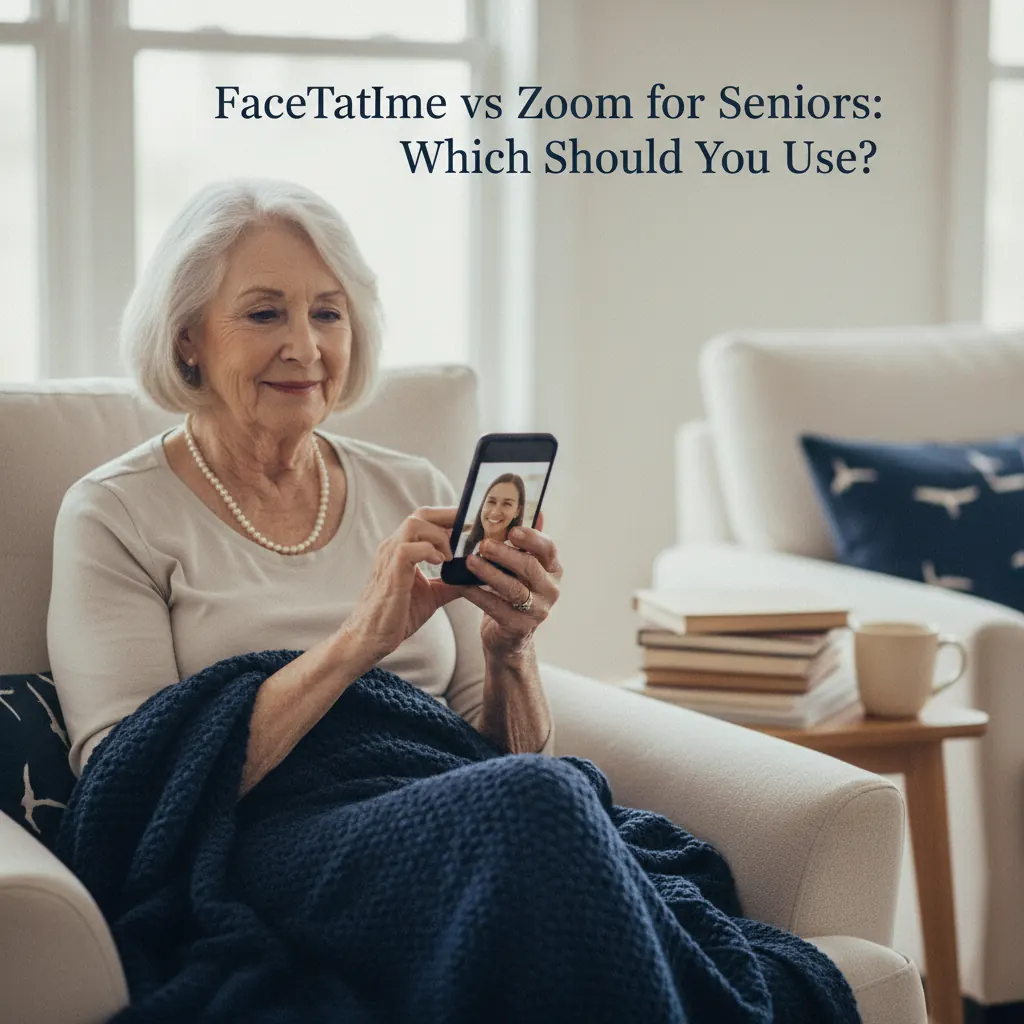
FaceTime
Best for iPhone-to-iPhone households. Built in to every iPhone, no separate app to install, and an incoming FaceTime looks identical to a regular phone call. One tap to answer. The catch: it only works on Apple devices unless the senior is willing to send and open web links, which defeats the simplicity.
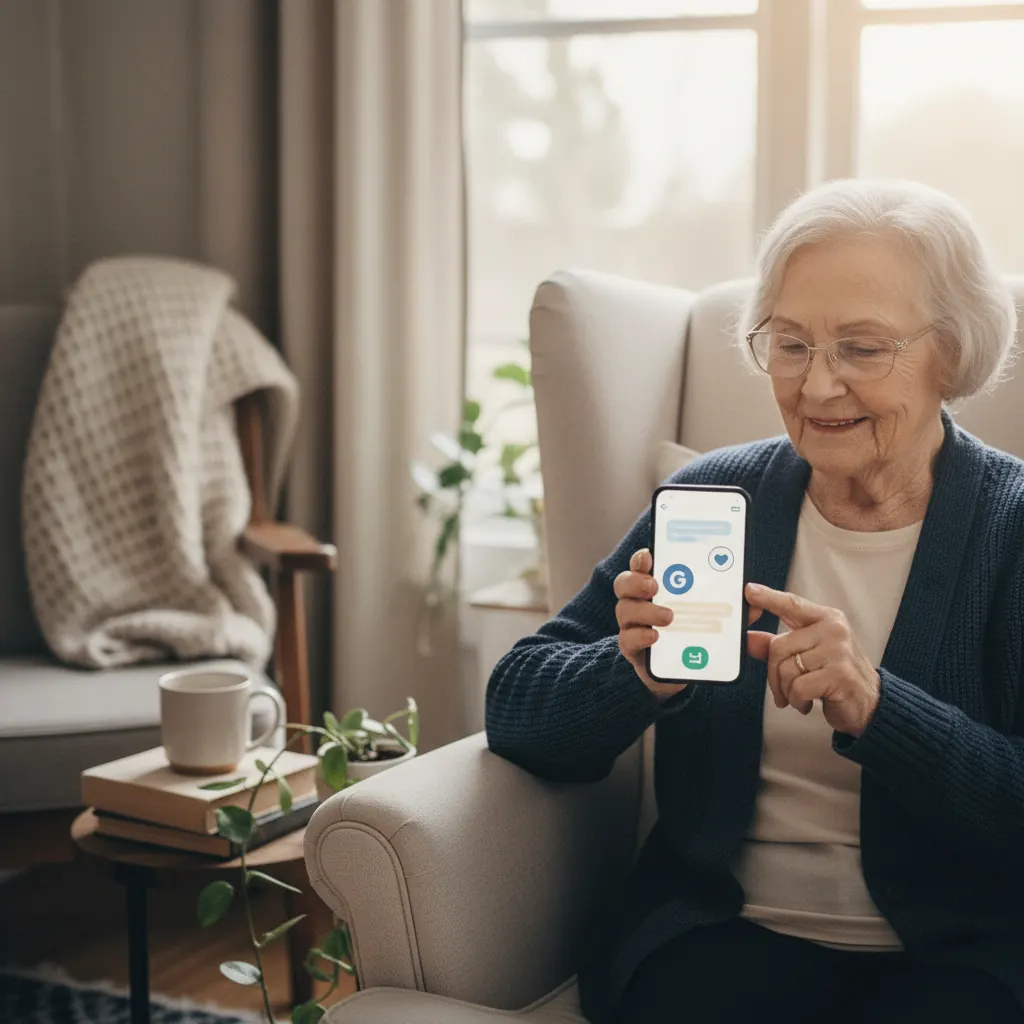
Best for mixed iPhone/Android families. The interface is reasonably consistent across both platforms, voice and video quality are excellent, and one-tap answering works once the app is set up. The setup itself requires entering a verification code from a text, which trips up some first-time users — plan to do this together.
Facebook Messenger
Best for users already on Facebook. If the senior already uses Facebook to look at family photos, Messenger is the natural choice — contacts and incoming calls "just work" without any setup. Be aware that Messenger has more advertising than the alternatives, and the in-app interface changes frequently.
Zoom
Best for scheduled group calls. Zoom is awkward for spontaneous one-tap calls but unmatched for weekly family check-ins or doctor's appointments. The "join by meeting ID" model is easier for many seniors than installing and signing in.
Our recommendation
If the household is all iPhone, use FaceTime. If anyone is on Android, use WhatsApp. Use Zoom only for scheduled group events. Do not install all four "just in case" — every additional app increases the chance of an accidental tap into something unfamiliar.
For step-by-step help setting up WhatsApp, or for our recommendations on which phone to choose in the first place, see our guide to the best smartphones for seniors.

Watch & learn
Recommended video: How to Use WhatsApp — Senior-Friendly Guide
A companion tutorial from Senior Tech Club. We link to a YouTube search so you always get a current, working version.
Watch “How to Use WhatsApp — Senior-Friendly Guide” on YouTubeOpens a YouTube search in a new tab · Senior Tech ClubKey takeaways
- Use the app the family already uses. The 'best' app is the one the senior never has to learn alone.
- FaceTime wins for all-Apple households. WhatsApp wins for mixed iPhone/Android.
- Avoid installing more than one video-call app — it multiplies confusion.
Frequently asked questions
- Is FaceTime free?
- Yes. FaceTime uses your Wi-Fi or cellular data, but there are no per-call charges of any kind. It is built into iPhone and does not require a subscription.
- Does WhatsApp work between iPhone and Android?
- Yes. WhatsApp is the same app on both platforms, and voice/video calls between iPhone and Android users work identically.