Setup & Basics · Quick guide
Understanding Smartphone Gestures: Tap, Swipe, Pinch and Long Press
Smartphones are incredible tools, but they rely on a language all their own: gestures. Tapping, swiping, pinching, and long pressing unlock a world of function, and I'm here to demystify them for you.
 By Suzy Ahn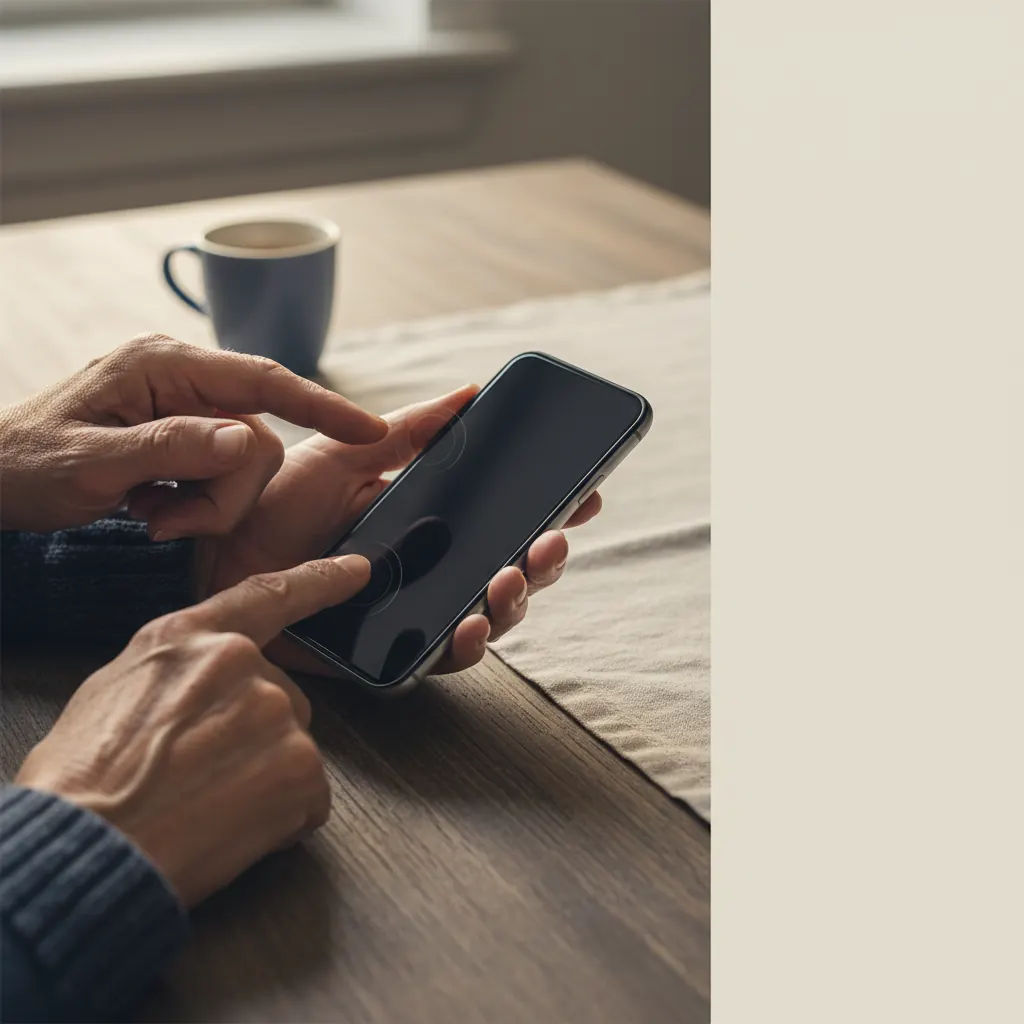
Smartphones are incredible tools, aren't they? They connect us with family, let us see photos of grandchildren from across the country, and deliver the news right to our fingertips. But sometimes, learning to use one can feel like trying to understand a new language. You've got this amazing device, beautiful and powerful, but how do you actually tell it what to do? It doesn't have a mouse, or a keyboard in the traditional sense. Instead, your smartphone listens to the subtle movements of your fingers: taps, swipes, pinches, and long presses.
For nearly two decades, I've had the immense privilege of teaching older adults how to embrace this wonderful technology. I've seen firsthand the lightbulb moments when a gesture clicks, and suddenly, a whole new world opens up. Last Tuesday, a delightful 78-year-old reader, Mrs. Henderson, emailed me, quite frustrated. She'd accidentally zoomed way in on a website and couldn't figure out how to zoom back out. "It's like the phone's playing tricks on me, Suzy!" she wrote. We had a quick chat, and I walked her through the 'pinch' gesture, and just like that, her article was back to normal size. That's why I wanted to dedicate this article to breaking down these fundamental gestures. Once you understand them, your smartphone won't feel so mysterious anymore. It'll feel like an extension of you.
Introduction: The Language of Your Finger
Think of your finger as a magic wand, or perhaps more accurately, a very precise stylus. Every time you touch your screen, your phone is paying attention. It's designed to respond to specific types of touch. These are what we call 'gestures.' Mastering them is the key to truly feeling comfortable and confident with your device, whether it's the latest iPhone 15 Pro Max or a brand-new Samsung Galaxy S24 Ultra.
We'll cover the most common ones today, the ones you'll use constantly. Don't worry if they don't feel natural right away. Like learning to ride a bicycle, it takes a little practice. But soon, these movements will become second nature, and you'll be navigating your phone with ease.
The Tap: Your Digital Point-and-Click
Let's start with the most basic and frequently used gesture: the tap. If your phone had a mouse, the tap would be like clicking the left mouse button. It's how you select things, open apps, confirm choices, and follow links.
What it is:
- A quick, light touch with one finger (usually your index finger or thumb) on a specific item on the screen.
- You lift your finger immediately after touching. It's not a press-and-hold; it's a tap, like you're tapping a drum lightly.
When to use it:
- To open an app: Tap the app's icon on your home screen or in your app library.
- To select an option: If you're in Settings and see a list of choices like "Display" or "Sounds," you tap the one you want to go into.
- To follow a link: When you're browsing the internet and see blue underlined text, or a picture that looks like it should take you somewhere, a tap will open it.
- To type: When you want to type a message or a search query, you tap inside the text box to bring up the keyboard.
- To make a call: In your Phone app, you tap the contact's name or number to initiate a call.
Tips for tapping:
- Be precise: Try to tap squarely on the item you intend to select. If your fingers are a bit larger, don't worry! Modern smartphones are quite forgiving. If you miss, just try again.
- Confirmation: Often, when you tap something, it will briefly highlight or change color to show that your tap was registered.
- It's not a frantic movement: A gentle tap is all it takes. No need to press hard. Your screen is sensitive!
The Double Tap: Magnify and Focus
The double tap is a less common but very useful gesture, especially when you're looking at web pages or photos. It can quickly zoom in on content or reset a view.
What it is:
- Two quick, consecutive taps in the same spot, just like a double-click on a computer mouse.
When to use it:
- Zooming on web pages: If you're reading an article like this one on Astoria Net Shop and find the text a bit small, double-tap on a paragraph. Your browser (like Safari on iPhone or Chrome on Android) will often zoom in to make that text fill the width of your screen, making it much easier to read. Double-tap again to zoom back out. This is exactly what helped Mrs. Henderson!
- Magnifying photos: In your Photos app, double-tapping a picture can zoom in on the specific area you tapped. Double-tap again to return to the full view.
Tips for double tapping:
- Rhythm is key: Aim for two taps that are close together in time, but not so fast that your phone thinks it's just one very long tap. A steady 'tap-tap' motion works best.
- Practice makes perfect: Try it on a web page or a photo you have. You'll quickly get the hang of the timing.
The Swipe: Gliding Through Your World
The swipe gesture is your way of moving through lists, pages, and even entire screens of information. It's incredibly versatile and fundamental to navigating your smartphone.
What it is:
- You place your finger on the screen and drag it in a particular direction before lifting it. It's like gently pushing something across a smooth surface.
When to use it:
- Scrolling: This is probably the most common use. When you're reading a long article, looking through your contacts, or scrolling through your emails, you swipe
up to move down the page (revealing content below) and swipedown to move up the page (revealing content above). - Switching home screens: On both iPhone and Android, you can usually have multiple home screens filled with apps and widgets. Swipe left or right on the home screen to move between these different panels.
- Dismissing notifications: When you pull down your notification shade (swipe down from the very top of your screen), you can often swipe left or right on individual notifications to clear them. (On an iPhone, you might swipe left and then tap 'Clear' or 'Manage').
- Flipping through photos: In your Photos app, after you've opened a picture, swipe left or right to move to the next or previous photo in your album.
- Closing apps (iPhone): On an iPhone with no Home button, swipe up from the very bottom of the screen and pause to see all your open apps. Then, swipe individual app previews upwards to close them.
- Going back (Android): Many Android phones (running Android 14 or 15) allow you to swipe from the left or right edge of the screen inwards to go back to the previous screen or app. This can be customized in Settings → System → Gestures → System navigation.
Tips for swiping:
- Smoothness: A smooth, continuous motion works best. Don't press too hard; just let your finger glide.
- Direction matters: Pay attention to the direction you're swiping, as it dictates the outcome.
- Experiment: Swipe in different directions in various apps to see what happens. You'll quickly learn the patterns. If you sometimes have trouble reading text, you might find How to Make Text Bigger on iPhone a helpful read.
The Pinch and Zoom: Seeing the Details
This is the gesture that helped Mrs. Henderson, and it's incredibly powerful for adjusting your view of photos, maps, and web pages. It's how you make things bigger or smaller on demand.
What it is:
- You use two fingers, usually your thumb and index finger, placed on the screen.
- To zoom in, you spread your fingers apart as if you're stretching a piece of elastic.
- To zoom out, you bring your fingers together as if you're pinching something.
When to use it:
- Viewing photos: Want to see that grandchild's face up close in a group photo? Pinch out to zoom in. Saw something distracting in the background? Pinch in to zoom out and make the whole photo fit.
- Reading maps: In Google Maps or Apple Maps, pinch out to see more detail of streets and landmarks. Pinch in to see a wider area, like an entire city or state.
- Browsing websites: If a website isn't responding well to the double-tap, or you want more granular control over the zoom level, pinch and zoom is your friend.
Tips for pinching and zooming:
- Start with fingers close: When zooming out, it's easier to start with your fingers a bit apart and bring them together. When zooming in, start with them closer and spread them.
- Practice on photos: Your Photos app is a safe and easy place to practice this gesture.
- It's intuitive: Many people find this gesture incredibly natural, even if they've never used a smartphone before, because it mimics how we'd physically interact with a picture on a table.
The Long Press: The Hidden Menus
The long press (sometimes called a touch and hold) is often overlooked, but it's a treasure trove of shortcuts and extra options. It's like right-clicking on a computer.
What it is:
- You place one finger on an item and hold it there for a second or two, without moving it. You'll often feel a slight vibration or see a menu pop up.
When to use it:
- App shortcuts: On your home screen, long-pressing an app icon (like Messages or Camera) will often bring up a quick menu of common actions. For example, long-pressing the Camera app might give you options like "Take Selfie" or "Record Video." This saves you taps!
- Moving and deleting apps: On an iPhone (iOS 17 and newer), long-pressing an app until all app icons jiggle means you can now rearrange them or tap the '–' icon to delete them. On Android (Android 14 and newer), long-pressing an app icon will usually let you drag it around, create a folder, or access app info to uninstall.
- Contextual menus: In many apps, long-pressing text, images, or other items will reveal options relevant to that item. Try long-pressing a word in an email for options like "Copy," "Select All," or "Look Up." Long-pressing a photo might give you a "Share" or "Save" option.
- Copying and pasting: This is a big one. To copy text, long-press a word until it highlights, then drag the blue (or green, depending on your phone) 'handles' to select more text. A menu will appear with "Copy." Then, go to wherever you want to paste, long-press in the text field, and tap "Paste."
- Widgets: Long-pressing on an empty space on your home screen often brings up options to add widgets or change your wallpaper.
Tips for long pressing:
- Be patient: It's not a tap, and it's not a frantic push. A steady, gentle hold is what you're aiming for. It usually takes about 1-2 seconds.
- Look for the menu: The result of a long press is almost always a new menu popping up, giving you more choices.
- It's often a shortcut: Many long-press features are designed to save you steps by putting common actions right at your fingertips. Understanding app management, like what you can do with a long press, is essential for keeping your phone tidy. You might also find Android Setup for Seniors or iPhone Setup for Seniors useful for more foundational knowledge about getting started with your device.
The Two-Finger Scroll: A Helpful Trick
While not as common as the others, the two-finger scroll can be a lifesaver in specific situations, particularly when a single-finger scroll isn't behaving as expected.
What it is:
- You place two fingers on the screen (side by side or one above the other) and drag them together, just like you would with a single-finger swipe.
When to use it:
- Within documents or complex apps: Sometimes, in very specific applications or documents (like a PDF viewer or a word processing app on your phone), a single-finger swipe might move something *within* a section, rather than scrolling the whole page. In these cases, a two-finger scroll often forces the entire page to scroll.
- When your phone is zoomed in: If you've zoomed way in on a web page or image, and a single-finger swipe is only moving the zoomed-in area around rather than getting you to new content, try a two-finger scroll. It can sometimes help to scroll the main content even when zoomed.
Tips for two-finger scrolling:
- Keep fingers together: Ensure your two fingers move in unison, maintaining roughly the same distance from each other.
- Troubleshooting: Think of this as a backup plan. If your regular one-finger scroll isn't working the way you expect in a particular situation, give the two-finger scroll a try!
Gentle Reminders and Practice
Remember, your smartphone is incredibly robust. You can't break it by tapping, swiping, or pinching, so don't be afraid to experiment! The worst thing that can happen is you do something unintended, and you can almost always hit the 'back' button (on Android) or swipe back from the left edge (on iPhone) to undo it. Or, simply close the app and reopen it.
Think of using your phone as developing muscle memory. The more you do these gestures, the more natural they'll become. Practice on a photo album, try zooming in and out on different websites, and explore those hidden menus with a long press on your favorite app icons.
I've seen so many of my students go from feeling utterly bewildered to confidently video chatting with grandchildren, managing their calendars, and even ordering groceries online, all thanks to mastering these basic touches. You're doing great, and every little bit of practice brings you closer to being a smartphone pro! Keep exploring, keep learning, and enjoy the wonderful world your phone opens up for you.

Watch & learn
Recommended video: How to Set Up a New Smartphone for an Older Adult
A companion tutorial from Cyber-Seniors. We link to a YouTube search so you always get a current, working version.
Watch “How to Set Up a New Smartphone for an Older Adult” on YouTubeOpens a YouTube search in a new tab · Cyber-SeniorsKey takeaways
- Smartphone gestures (tap, swipe, pinch, long press) are the primary way to interact with your device.
- The 'tap' opens apps, selects options, and follows links, acting like a computer mouse click.
- The 'swipe' allows you to scroll through content, switch home screens, and navigate between photos.
- The 'pinch and zoom' gesture, using two fingers, helps you magnify or shrink photos, maps, and web pages.
- The 'long press' reveals hidden menus and shortcuts, offering quick access to app-specific actions and options like copying text.
Frequently asked questions
- What's the difference between a tap and a long press?
- A tap is a quick, light touch and immediate release, used for selecting or opening items. A long press involves holding your finger down on an item for a second or two, which usually brings up a special menu with more options or allows you to move items.
- My phone isn't responding to my taps. What could be wrong?
- Several things could be happening. Your finger might not be making full contact, or perhaps your screen isn't perfectly clean. Ensure your finger is slightly damp (not wet, just not bone dry) for good contact. If the screen is completely unresponsive, the phone might be frozen; try restarting it. See our article <a href="/articles/smartphone-frozen-screen-fix">Smartphone Frozen Screen Fix</a> for more detailed steps.
- How do I zoom in on text if I don't want to use pinch and zoom?
- Many web browsers and apps allow you to double-tap on a paragraph to zoom in and out. For more permanent text size changes, you can adjust the system-wide text size in your phone's settings: On iPhone, go to Settings -> Display & Brightness -> Text Size. On Android, go to Settings -> Display -> Display size and text.
- I accidentally zoomed in too far and can't see the edges of the screen. How do I fix it?
- This is a common one! Try the pinch-in gesture – place two fingers on the screen and slowly bring them together. If that doesn't work right away, try a double-tap on the screen. Sometimes, if you're very, very zoomed in, you might need to use two fingers to swipe around the screen until you can get enough context to pinch out.
- Why do some apps have different gestures than others?
- While the core gestures (tap, swipe, pinch, long-press) are universal across almost all smartphones and apps, some app developers create unique gestures for specific functions within their app. This is often done to make the app more efficient to use. Don't worry, these tend to be clearly explained within the app's tutorial or help section.