Accessibility & Vision · Quick guide
Tremor-Friendly Touch Settings on iPhone and Android
For many of my students, using a smartphone can become a real challenge when hand tremors enter the picture. But modern iPhones and Androids have some truly clever settings to make them much more accessible. Let's dig in.
 By Suzy Ahn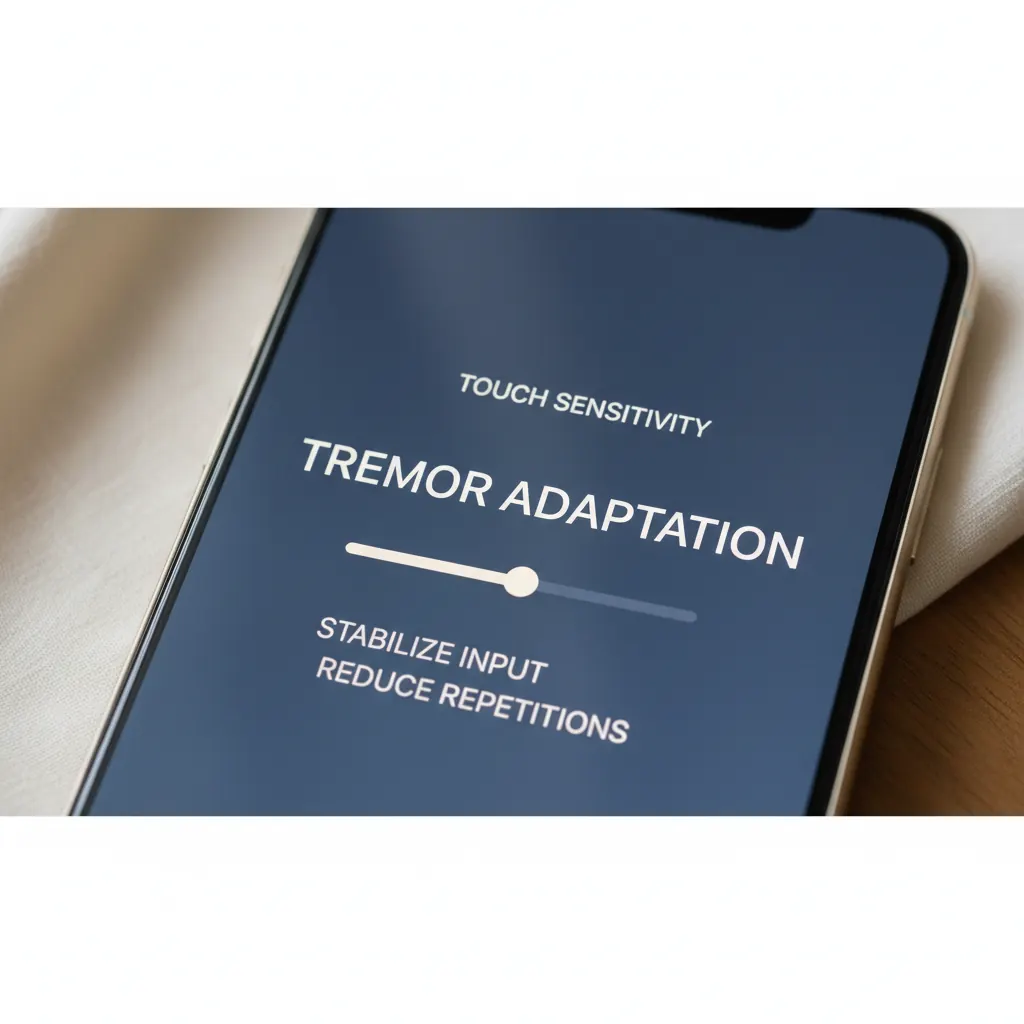
For many of my students over the years, the joy of connecting with family, reading news, or even just playing a quick game on their smartphone slowly diminishes when hand tremors become a factor. I've often seen the frustration build, the phone put down, and that look of defeat. Last Tuesday, a wonderful 78-year-old reader, Mrs. Eleanor Vance, emailed me about her persistent struggle to tap the right icon on her new Samsung Galaxy. 'It feels like my finger has a mind of its own, Suzy,' she wrote. 'One tap turns into three, or I open the wrong app entirely!' Eleanor, you're not alone, and I'm here to tell you there are some truly clever, often overlooked, settings on both iPhones and Android phones that can make a world of difference.
You see, smartphones are designed for quick, precise taps. But if your hands experience involuntary movements, even slight ones, that design can feel like it's working against you. The good news is that both Apple and Google have invested heavily in accessibility features, many of which directly address these challenges. It's just a matter of knowing where to look and what to adjust. So, let's roll up our sleeves and explore how to make your smartphone feel like an extension of you again, tremors and all.
A Gentle Touch: Making Smartphones Work With Tremors
Imagine trying to thread a needle, but every time you get close, your hand gives a little jump. That's a bit like what it feels like to use a smartphone's touchscreen when you have hand tremors. Standard touch settings are often too sensitive, picking up unintended taps or swipes, turning a simple task into a frustrating ordeal. Luckily, smart engineers at Apple and Google understand this, and they've built in some incredible tools to help.
My goal today is to walk you through these settings, step-by-step, for both iPhones (running on recent iOS versions like 17 or 18) and Android phones (like your Samsung Galaxy, Google Pixel, or Motorola, running on Android 14 or 15). We'll cover everything from how long a touch needs to be registered to ignoring accidental swipes. By the end, I hope you'll feel a renewed sense of confidence and control over your device.
The Tremor Challenge: Why Standard Touch Isn't Always Enough
Our smartphones work by detecting electrical changes when your finger makes contact with the screen. It's incredibly fast and accurate for most users. However, if your hand isn't perfectly steady, a few things can happen:
- Accidental Taps: A slight tremor makes your finger briefly brush the screen before you intend to tap, registering an unwanted touch.
- Multiple Taps: Your finger might bounce on the screen, causing the phone to interpret one intended tap as two or three rapid taps.
- Swipe vs. Tap Confusion: A small tremor can cause your finger to drag just slightly across the screen, turning an intended tap into an accidental swipe, opening the wrong menu or dismissing an alert.
- Holding Difficulty: Pressing and holding to move an icon or access a context menu can be tricky if your finger isn't perfectly still.
These aren't user errors; they're design challenges that can be mitigated with the right accessibility settings. It's about adapting the technology to suit you, rather than you trying to adapt to the technology.
Apple iPhone: Tailoring Your Touch
Apple's accessibility features are robust and thoughtfully designed. For tremors, we're going to focus primarily on 'Touch Accommodations'.
Accessing Touch Accommodations (iOS 17/18)
- Open the Settings app (the gray gear icon).
- Scroll down and tap Accessibility.
- Under the 'Physical and Motor' section, tap Touch.
- Tap Touch Accommodations.
Here's where the magic happens. You'll switch on 'Touch Accommodations' at the top of this screen. Once enabled, you'll see three key settings:
1. Hold Duration
This setting determines how long you need to touch the screen before your tap is registered. Think of it like a tiny delay mechanism. If you often find your iPhone registering taps you didn't mean to make (because your finger briefly touched the screen due to a tremor), increasing the 'Hold Duration' can be a game-changer.
- Toggle Hold Duration on.
- Use the + and - buttons to adjust the time. I usually recommend starting around 0.30 seconds and gradually increasing it if you still experience accidental taps. You want it long enough to prevent accidental touches, but not so long that it feels sluggish. Experimentation is key here until it feels just right.
This was particularly helpful for Mr. Henderson, a lovely gentleman in my class who loved playing a simple solitaire game on his iPad. He kept accidentally dropping cards because his finger would lift and tap too quickly. After adjusting his Hold Duration, he was celebrating victories again!
2. Ignore Repeat
This is crucial if your iPhone is interpreting a single tap as multiple taps. 'Ignore Repeat' tells your iPhone to treat multiple rapid touches within a certain timeframe as just one single touch.
- Toggle Ignore Repeat on.
- Again, use the + and - buttons to set the duration. A good starting point is often around 0.50 seconds. This means if you tap, and then your finger 'bounces' and taps again within half a second, the iPhone will only register the first tap.
This setting is a lifesaver for those involuntary 'double-taps' that open apps twice or register unwanted selections.
3. Tap Assistance
This is perhaps the most unique and powerful feature within Touch Accommodations. It addresses the issue of accidentally dragging a finger slightly before releasing, which the iPhone might interpret as a swipe instead of a tap. Tap Assistance has two options:
- Use Initial Touch Location: If you turn this on, the iPhone will register your tap *where your finger first made contact* with the screen, even if it drags a little before you lift it. This is fantastic for precision.
- Use Final Touch Location: If you turn this on, the iPhone will register your tap *where your finger lifts off* the screen. This can be helpful if your tremor tends to settle *after* you've made initial contact, allowing you to aim more steadily before lifting.
I find 'Use Initial Touch Location' to be the most beneficial for many users with tremors. Try it! And below both of these options, you'll see a 'Tap Assistance Gesture Delay'. If you choose either Initial or Final Touch Location, you can set a delay – how long you have to lift your finger after making initial contact for it to still count as a tap, not a swipe. Start with around 0.20-0.30 seconds and adjust as needed.
Other Helpful iPhone Settings
- Home/Side Button Speed: (Settings → Accessibility → Side Button or Home Button) If you have a physical Home button (older models) or the Side button (newer models), you can adjust how fast you need to double or triple press it for functions like Apple Pay or Accessibility Shortcuts. Setting it to 'Slow' can prevent accidental activations.
- Reachability: (Settings → Accessibility → Touch) This feature allows you to pull the top of the screen down into easier reach with a swipe gesture (swipe down on the bottom edge on Face ID iPhones, or double-tap the Home button on Home button iPhones). While not directly tremor-related, if holding the phone steady and reaching across the screen is difficult, Reachability can help you interact with elements using less hand movement.
- Haptic Touch/3D Touch Sensitivity: (Settings → Accessibility → Touch → Haptic Touch or 3D Touch (if applicable)) You can adjust how firm a press is required to activate these 'deep press' features, or how long you need to press for Haptic Touch. Setting it to 'Slow' or 'Light' might be helpful.
- Making Text Bigger: (Settings → Accessibility → Display & Text Size → Larger Text) While not directly related to touch, seeing what you're trying to tap more clearly can reduce mis-taps. A larger target is easier to hit!
- Setting Up Your iPhone for Seniors: This comprehensive guide covers many basic adjustments that, when combined with tremor-specific settings, can make your iPhone even more user-friendly.
Google Android: Customizing for Comfort
Android also offers a robust suite of accessibility options, though the exact names and menu paths can vary slightly between manufacturers (Samsung, Google Pixel, Motorola, etc.) and Android versions. I'll give you the common paths for Android 14/15, and you might need to hunt just a little if your phone's interface is slightly different. Generally, look for 'Accessibility' in your phone's main settings.
Accessing Touch Settings (Android 14/15 - General Path)
- Open the Settings app (often a gear icon).
- Scroll down and tap Accessibility.
- Look for options under 'Interaction and dexterity' or 'Physical and motor'. Tap Interaction and dexterity (this is common on Samsung Galaxy phones).
- Tap Touch and hold delay or Tap duration.
Now for the specific settings:
1. Touch and Hold Delay (or Tap Duration)
This setting is very similar to iPhone's 'Hold Duration'. It dictates how long your finger needs to be on the screen for the touch to be registered as a 'press and hold' action (like moving icons or bringing up context menus). If you find your phone activating 'press and hold' actions when you just meant to tap, try increasing this delay.
- You'll usually see options like 'Short', 'Medium', and 'Long'. Choose Long to start.
- On some Android phones (like Google Pixel), you might even get a slider for more granular control. If so, move the slider to a longer duration.
This is incredibly helpful for preventing accidental 'drag and drop' scenarios, where a slight tremor turns a tap into an unintentional move of an app icon.
2. Ignore Repeated Touches (or Tap Rejection)
This feature is the Android equivalent of iPhone's 'Ignore Repeat'. It prevents your phone from registering multiple taps when you've only intended one. It's excellent for reducing the frustration of 'bouncing' fingers.
- On Samsung, you might find this under Interaction and dexterity → Touch sensitivity or Accessibility → Advanced settings → Timing controls → Ignore repeated touches.
- On Google Pixel, look under Accessibility → Timing controls → Tap duration (and then you'll see a toggle for 'Ignore repeated touches').
- Once you find it, enable it and adjust the duration. Start with a higher number (e.g., 0.5 seconds or more) and reduce it if it feels too slow.
3. Touch Feedback Delay (or Touch sensitivity)
Some Android phones offer a setting that can adjust the overall sensitivity of the screen. While not directly tremor-specific like 'ignore repeated touches', reducing overall screen sensitivity can sometimes help alleviate accidental touches by requiring a slightly firmer or more deliberate press.
- Look under Interaction and dexterity → Touch sensitivity or Display settings.
- On Samsung phones, there's often a toggle for 'Touch sensitivity' which you can adjust, particularly if you use a screen protector.
Other Android Accessibility Gems
- Tap to Wake: (Settings → Display) If you accidentally wake your screen by bumping it, you can turn off 'Tap to wake' to prevent unintended interactions. Conversely, if pressing the power button is difficult, using 'Tap to wake' could be beneficial, accompanied by careful adjustment of other touch settings.
- Cursor Size and Speed (for external mouse): (Settings → Accessibility → Interaction and dexterity → Pointer speed) While not for direct screen touch, if you're considering using an external mouse with your Android device (which is a fantastic assistive option for some), you can adjust its speed and size here for easier control.
- Setting Up Your Android Phone for Seniors: Just like with iPhones, a good foundational setup makes all these tremor-specific adjustments even more effective.
Beyond Touch: Other Helpful Strategies
While fine-tuning touch settings is paramount, a few other strategies can enhance your smartphone experience when dealing with tremors:
- Use a Stable Surface: Whenever possible, rest your elbows or forearms on a table or even your lap while using your phone. This provides extra stability and can significantly reduce the amplitude of tremors.
- Prop Up Your Phone: A simple phone stand can allow you to interact with your device without having to hold it. You can then use your finger or even a stylus (more on that next) with less effort and more stability.
- Stylus Usage: For many, a stylus (a pen-like tool for touchscreens) can offer a real advantage. It can provide a more precise point of contact than a finger, and some people find it easier to control than a direct finger touch, especially if they can rest their hand on the screen while using it. Experiment with different types – some are fine-tipped, others have softer, broader tips.
- Voice Control: Both iPhones and Androids have excellent voice control capabilities. For sending texts, making calls, opening apps, or even typing out emails, using your voice can bypass the need for precise touch entirely. Explore 'Voice Control' on iPhone (Settings → Accessibility → Voice Control) or 'Voice Access' on Android (Settings → Accessibility → Voice Access).
- Simplify Your Home Screen: Reduce clutter on your home screen. Larger, fewer icons mean larger, easier targets to hit. Consider using folders for less-used apps.
Practice Makes Perfect (Enough!)
Adjusting these settings isn't a one-and-done solution. It's an iterative process. You'll need to experiment with different durations and toggles to find what feels most comfortable and effective for you. Don't be afraid to try a setting, use your phone for a day or two, and then come back to tweak it. What works perfectly for one person might need a slight adjustment for another.
Remember Eleanor, my reader from the beginning? After a video call where we adjusted her Samsung's 'Touch and hold delay' and 'Ignore repeated touches', I got another email from her a few days later. 'Suzy,' she wrote, 'I can actually play my word game again without accidentally selling all my power-ups! It's a small thing, but it's made such a difference.' And that, dear readers, is why I do what I do.
These features are here to empower you, to make your technology serve *your* needs, not the other way around. Take your time, be patient with yourself, and enjoy reclaiming confident control over your smartphone. You've got this.
Watch & learn
Recommended video: Make Your iPhone Easier to See and Hear
A companion tutorial from Apple Support. We link to a YouTube search so you always get a current, working version.
Watch “Make Your iPhone Easier to See and Hear” on YouTubeOpens a YouTube search in a new tab · Apple SupportKey takeaways
- Both iPhones and Android phones offer specialized accessibility settings to help users with hand tremors.
- Key iPhone settings include 'Hold Duration', 'Ignore Repeat', and 'Tap Assistance' found under Settings → Accessibility → Touch → Touch Accommodations.
- Android phones offer similar features like 'Touch and hold delay' and 'Ignore Repeated Touches', typically found under Settings → Accessibility → Interaction and dexterity.
- Experimentation is crucial to find the optimal settings for individual needs.
- Beyond touch settings, consider using a stable surface, a stylus, or voice control to improve smartphone usability.
Frequently asked questions
- What is 'Hold Duration' on an iPhone?
- 'Hold Duration' determines how long you need to touch the screen for a tap to register. Increasing it helps prevent accidental taps caused by brief, unintentional screen touches due to tremors.
- How can I prevent my Android phone from registering multiple taps when I only intend one?
- On Android, look for a setting like 'Ignore Repeated Touches' or 'Tap Rejection' (often under Accessibility → Interaction and dexterity or Advanced settings). Enabling and adjusting this will tell your phone to treat rapid, successive touches as a single tap.
- Is a stylus helpful for tremors?
- Yes, for many people, a stylus can significantly improve precision and control when using a touchscreen, especially if they can rest their hand on the screen or a stable surface while using it.
- Where can I find these settings on my phone?
- On iPhone (iOS 17/18), go to Settings → Accessibility → Touch → Touch Accommodations. On Android (Android 14/15), start with Settings → Accessibility and then look for 'Interaction and dexterity' or 'Physical and motor' to find specific touch settings like 'Touch and hold delay' or 'Ignore repeated touches'. Exact paths can vary slightly by phone model and Android version.
- Will these settings make my phone slow to respond?
- By design, these settings introduce slight delays to help filter out unintended touches. While it might feel a little different at first, the goal is to make your phone *more* responsive to your *intended* actions, ultimately improving usability and reducing frustration. You can adjust the durations to find a comfortable balance.