Troubleshooting · Quick guide
Phone Has No Sound? Seven Calm Steps to Fix It
It’s a common moment of mild panic: your phone rings—or you *think* it should be ringing—but there's just silence. No notification dings, no music, no voice during a call. My dear readers, you are certainly not alone in this experience.
 By Suzy Ahn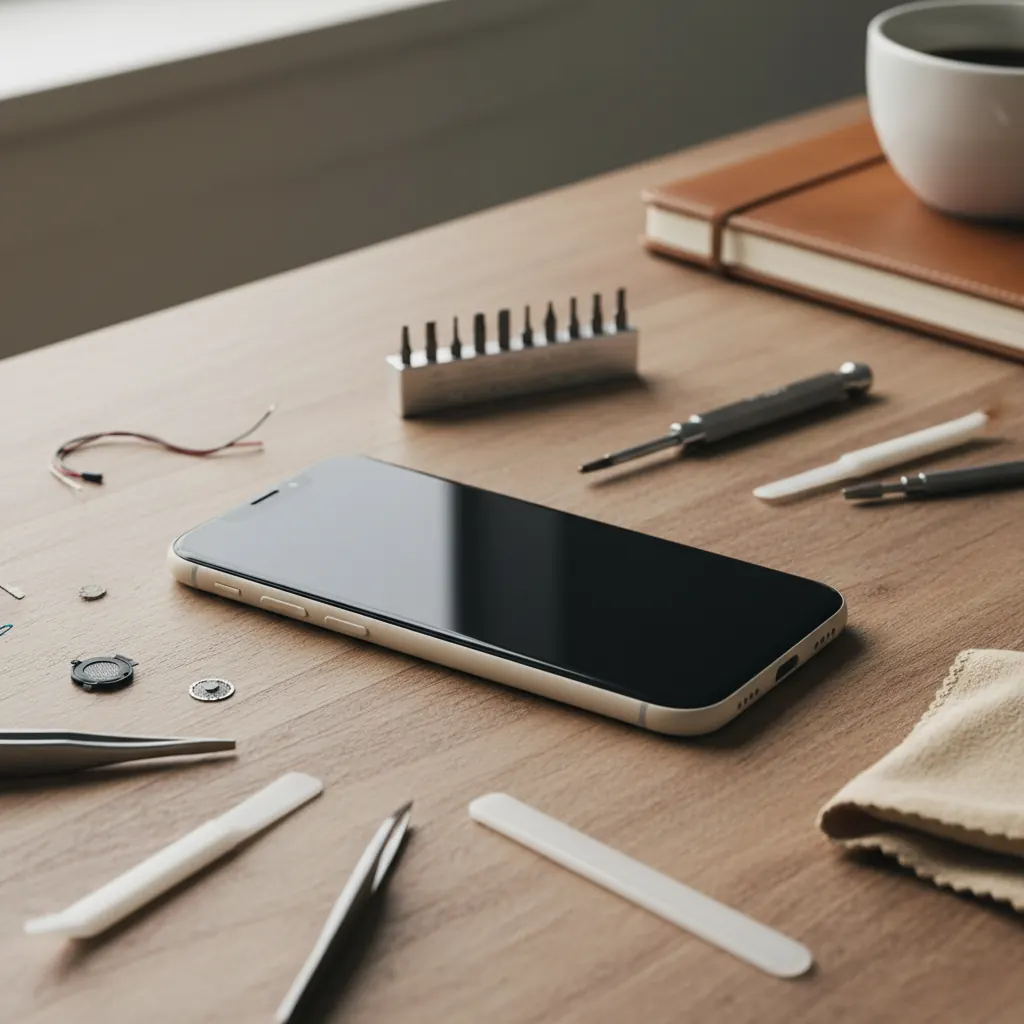
It’s a common moment of mild panic: your phone rings—or you *think* it should be ringing—but there's just silence. No notification dings, no music, no voice during a call. My dear readers, you are certainly not alone in this experience. I've heard countless variations of this story over my nearly two decades teaching technology to older adults. It's frustrating, isn’t it? Especially when you rely on your phone for important calls from family, doctor's appointments, or even just enjoying a podcast. But breathe easy. Nine times out of ten, a 'no sound' issue is something we can fix together, right from your armchair.
I remember one delightful gentleman, Mr. Henderson, a spry 82-year-old, who called me last spring sounding quite distressed. 'Suzy,' he boomed, 'my iPhone has gone completely silent! I can't hear my grandchildren when they call, and my favorite jazz music just plays in my head now!' We walked through a few steps, and within minutes, we discovered his culprit: a rogue Bluetooth speaker he'd forgotten he'd paired his phone with. The relief in his voice was palpable. It's often something simple, and with a calm, step-by-step approach, we can get your phone singing again.
Before we dive into the specific solutions, I want to gently remind you that troubleshooting can take a little patience. Think of it like a detective story – we're looking for clues to find the 'why' behind the silence. We’ll start with the simplest, most common culprits and work our way to the more involved solutions. Most importantly, don't feel discouraged if the first solution doesn't work. Keep going! Let's get that sound back.
1. Check Your Ringer Volume and Silent Switch
This is where we always start. It might seem obvious, but you’d be surprised how often this is the forgotten setting! Modern smartphones have several volume controls, all independent of each other: one for the ringer and alerts, one for media (music, videos), and one for in-call volume. And then there's the physical silent switch on iPhones.
For iPhone Users (iOS 17/18):
- The Ring/Silent Switch: Look at the left side of your iPhone. Do you see a small switch above the volume buttons? That's your Ring/Silent switch. If it's pulled down (towards the back of your phone) and you see an orange strip, your phone is in Silent Mode. Simply push it up (towards the screen) to turn Ringer Mode back on. You should see a notification on your screen saying 'Ringer On' and feel a slight vibration.
- Volume Buttons: Now, press the 'Volume Up' button on the left side of your phone. You'll see a volume slider appear on your screen. Make sure it's sufficiently up.
- Control Center: Swipe down from the top right corner of your screen (for iPhones with Face ID) or swipe up from the bottom (for iPhones with a Home button) to open Control Center. Look for the crescent moon icon (Do Not Disturb) or the bell with a line through it (Silent Mode). If either is highlighted, tap it to turn it off. Also, ensure the volume slider for media is up – it looks like a speaker icon with a bar.
- Settings App: Go to 'Settings' → 'Sounds & Haptics'. Here, you’ll find a slider labeled 'Ringer and Alerts Volume'. Drag this slider to the right to increase your ringer volume. Make sure 'Change with Buttons' is also toggled on if you want your physical volume buttons to control the ringer volume.
For Android Users (Android 14/15):
- Volume Buttons: Press the 'Volume Up' button on the side of your Android phone. You should see a volume slider appear on your screen, likely for media. Often, you'll see a small arrow or gear icon next to this slider. Tap it. This will usually expand to show separate sliders for 'Media volume,' 'Call volume,' 'Ring volume,' and 'Alarm volume.' Make sure 'Ring volume' is turned up.
- Quick Settings: Swipe down from the top of your screen twice to reveal your Quick Settings panel. Look for a sound icon. It might be a speaker, a vibrating phone, or a crossed-out speaker. Tap this icon to cycle through sound modes: 'Sound', 'Vibrate', and 'Mute'. Ensure it's set to 'Sound'.
- Settings App: Open your 'Settings' app. Tap on 'Sound & vibration'. Here you'll find individual sliders for 'Media volume,' 'Call volume,' 'Ring volume,' and 'Alarm volume.' Adjust your 'Ring volume' and 'Media volume' to a comfortable level. Also, check 'Do Not Disturb' settings to make sure it's not accidentally enabled.
2. Restart Your Phone (The Classic Fix)
Ah, the classic 'turn it off and back on again.' It's a cliché sometimes, but my goodness, it works wonders for so many technology glitches, including sound issues. A simple restart can clear out temporary software bugs, refresh your phone's memory, and resolve minor system errors that might be preventing sound from working correctly. Think of it as giving your phone a little nap and a fresh start.
How to Restart Your iPhone:
For most modern iPhones (iPhone X and later): Press and hold either the 'Volume Up' button or the 'Volume Down' button simultaneously with the 'Side button' (on the right) until the 'power off slider' appears. Drag the slider to turn your iPhone completely off. Wait about 30 seconds, then press and hold the 'Side button' again until you see the Apple logo.
For older iPhones (iPhone SE, iPhone 8 and earlier): Press and hold the 'Side button' (on the right) until the 'power off slider' appears. Drag the slider to turn your iPhone completely off. Wait about 30 seconds, then press and hold the 'Side button' again until you see the Apple logo.
How to Restart Your Android Phone:
For most Android phones: Press and hold the 'Power button' (usually on the right side) for a few seconds. A menu will appear with options like 'Power off' or 'Restart.' Tap 'Restart.' If you don't see 'Restart,' tap 'Power off,' wait 30 seconds, then press and hold the 'Power button' again until your phone turns back on.
Once your phone has restarted, test the sound. Try playing a YouTube video, a song, or making a quick test call to a friend or family member. Hopefully, this simple step brings your sound back!
3. Disconnect Bluetooth Devices
This is where Mr. Henderson’s story comes in! Many sound issues arise because your phone thinks it’s still connected to a Bluetooth device, like wireless headphones, a car stereo, or a speaker, even if that device is off or out of range. Your phone is dutifully sending all its audio to that connected device, leaving your phone’s internal speakers silent.
How to Disconnect Bluetooth Devices on iPhone:
- Control Center: Swipe down from the top right corner of your screen (or up from the bottom if you have a Home button). Tap the Bluetooth icon (it looks like a stylized 'B') to turn it off. It will turn gray when off.
- Settings App: Go to 'Settings' → 'Bluetooth'. Here you'll see a list of 'My Devices'. Look for any devices that say 'Connected'. You can either tap the 'i' icon next to each connected device and choose 'Forget This Device' (if you don't plan to use it again soon), or simply toggle the main 'Bluetooth' switch off at the top of the screen. I usually recommend just turning the main switch off for troubleshooting.
How to Disconnect Bluetooth Devices on Android:
- Quick Settings: Swipe down from the top of your screen twice. Find the Bluetooth icon (again, a stylized 'B') and tap it to turn it off. It will usually change color or become gray when off.
- Settings App: Open your 'Settings' app. Tap on 'Connected devices' or 'Bluetooth'. Here you'll see a list of paired devices. You can tap the gear icon next to any connected device and choose 'Forget' or 'Disconnect', or simply toggle the main 'Bluetooth' switch off at the top of the screen.
After turning off Bluetooth, try playing some audio again. If the sound returns, you've found your culprit! You can then carefully reconnect to your Bluetooth devices when you need them, or investigate why a particular device always seems to steal your phone's sound. I've written another article, 'How to Pair Your Hearing Aids with Your iPhone,' which goes into more detail about managing specific Bluetooth connections, which might be helpful here.
4. Check App-Specific Sound Settings
Sometimes, the issue isn't with your phone's overall sound, but with a particular app. Many apps, especially video players, games, or communication apps, have their own internal volume controls or mute buttons. It’s entirely possible that you or someone else accidentally muted sound within a specific application.
What to Look For:
- Video Players (YouTube, Netflix, etc.): When watching a video, look for a speaker icon directly on the video player controls. It might be muted or set to a very low volume. Tap it to unmute or adjust.
- Games: Most games have a 'Settings' or 'Options' menu (often a gear icon) where you can adjust music and sound effect volumes independently.
- Communication Apps (Zoom, FaceTime, WhatsApp): During a call, these apps usually have a microphone icon and a speaker icon. Ensure the speaker icon isn't muted. Sometimes, the app might be set to output sound to an earpiece even if you want it on speakerphone, so look for an option to switch audio output.
If you're only experiencing no sound in one particular app, try checking its settings. If that doesn't work, you might try uninstalling and reinstalling the app. This can sometimes clear up app-specific glitches. Just make sure you know your login information before you uninstall it!
5. Clean Your Speakers and Ports Gently
Over time, the small speaker grilles and charging port on your phone can accumulate lint, dust, and other debris. This buildup can muffle or block sound entirely. It’s a common issue, especially if you carry your phone in your pocket or a purse. Let's give those openings a gentle clean.
How to Clean Safely:
- Power Down: Always turn your phone completely off before attempting any cleaning.
- Tools: You'll need a soft, dry brush (a clean, soft-bristled toothbrush works well) and perhaps a can of compressed air designed for electronics. Avoid using anything metallic or sharp, like a needle or paperclip, as you could damage the delicate components inside.
- Speaker Grilles: Gently brush the speaker grilles (often located at the top near the earpiece and at the bottom edge of your phone) to dislodge any surface dust or lint. If you have compressed air, use short, controlled bursts from a short distance, making sure to hold the can upright to prevent propellant from spraying out. Don't blast air directly into the grilles aggressively.
- Charging Port: This port, usually at the bottom, can also collect debris that might interfere with sound if your phone mistakenly thinks headphones are plugged in. Gently brush inside the port, again, very carefully.
- Headphone Jack (if applicable): If your phone has a traditional 3.5mm headphone jack (mostly older models now), clean inside there too, as lint can trick your phone into thinking headphones are connected.
After cleaning, turn your phone back on and test the sound. Sometimes, just removing a tiny bit of pocket lint from a port or speaker grille is all it takes to restore crystal-clear audio. Many of my students come back thanking me for this simple advice, often surprised by how much debris can gather in such small spaces!
6. Update Your Phone's Software
Software updates aren't just about new features; they often include important bug fixes and performance improvements. An outdated operating system (iOS for iPhones, Android for Android phones) could have a known bug that affects sound, which a newer update might resolve. Keeping your phone's software current is good practice for security and reliability in general.
How to Check for Software Updates:
For iPhone Users:
- Make sure your iPhone is connected to Wi-Fi and has at least 50% battery life (or is plugged into power).
- Go to 'Settings' → 'General' → 'Software Update'.
- Your iPhone will check for available updates. If one is found, tap 'Download and Install'. Follow the on-screen prompts. This process can take some time, so make sure you have a few uninterrupted minutes.
For Android Users:
- Make sure your Android phone is connected to Wi-Fi and has at least 50% battery life (or is plugged into power).
- Go to 'Settings' → 'System' → 'System update' (or 'Software update' depending on your phone model).
- Your phone will check for available updates. If one is found, tap 'Download and Install'. Follow the on-screen prompts. Again, this might take a while.
Once your phone has updated and restarted, test the sound again. Hopefully, the update has patched up any audio-related software glitches you were experiencing. This applies to so many problems people encounter with their phones; always ensure your software is up to date, whether you're trying to fix sound, improve battery life, or even learn how to spot phishing text messages.
7. Reset All Settings (A Last Resort)
If you've tried all the above steps and your phone still isn't making a peep, a 'Reset All Settings' might be necessary. This option is less drastic than a 'factory reset' because it doesn't erase your personal data, photos, apps, or contacts. Instead, it resets all your phone's settings back to their default values – things like Wi-Fi passwords (you'll have to re-enter them), wallpaper, notification preferences, and sound settings. Sometimes, a deeply buried, incorrect setting can be the culprit, and this will flush it out.
Before you begin: Make a note of your Wi-Fi passwords, as you'll need to re-enter them. Other personalized settings (like ringtones you set, accessibility adjustments you've made, etc.) will also revert to default.
How to Reset All Settings on iPhone:
- Go to 'Settings' → 'General' → 'Transfer or Reset iPhone' → 'Reset'.
- Tap 'Reset All Settings'. You will be asked to enter your passcode.
- Confirm the reset. Your iPhone will restart after this process.
How to Reset All Settings on Android:
- Go to 'Settings' → 'System' → 'Reset options' (or similar, depending on your Android model).
- Tap 'Reset Wi-Fi, mobile & Bluetooth' (this is a good intermediate step if you suspect network or connectivity issues, but for sound, we'll go broader).
- Then, look for 'Reset app preferences' or 'Reset all settings' (it might be labeled slightly differently depending on your phone, e.g., 'Reset Settings' on Samsung). This option will reset all system settings without erasing your data. Again, confirm the reset if prompted. Your phone will then reset its settings and likely restart.
After your phone has potentially restarted and its settings are back to default, meticulously check your volume levels again (Step 1). Then, go through your phone’s functions one by one to see if the sound has returned. If even after a 'Reset All Settings,' you still have no sound, it's increasingly likely that there's a hardware issue with your phone's speakers or internal components. At this point, it would be wise to contact your phone’s manufacturer support or take it to a reputable repair shop. Some phone carriers also offer technical support.
Concluding Thoughts
Having a phone with no sound can be disorienting, but as you’ve seen, many of the common causes are easily fixed with a bit of systematic troubleshooting. Remember my mantra: start simple, be patient, and work your way through the steps. You are capable of resolving many of these common tech frustrations!
If you found this guide helpful and are interested in learning more about getting the most out of your smartphone, I encourage you to explore other articles on Astoria Net Shop, such as 'The Best Smartphones for Seniors' or 'Setting Up Your New iPhone: A Beginner's Guide.' We're always here to help you feel more confident and connected in our digital world.
Watch & learn
Recommended video: Phone Battery Draining Too Fast? Try This
A companion tutorial from Android Authority. We link to a YouTube search so you always get a current, working version.
Watch “Phone Battery Draining Too Fast? Try This” on YouTubeOpens a YouTube search in a new tab · Android AuthorityKey takeaways
- Most phone no-sound issues are software-related and fixable at home.
- Always begin by checking physical volume buttons and silent switches (iPhone).
- Restarting your phone is a surprisingly effective first step for many glitches.
- Bluetooth connections often 'hijack' your phone's audio; disconnect them to troubleshoot.
- Clean speaker grilles and charging ports to remove debris that muffles sound.
Frequently asked questions
- Why is my phone suddenly not making any sound?
- The most common reasons for sudden phone silence include the ringer/silent switch being activated (iPhone), volume being turned down, accidental connection to a Bluetooth device (like headphones or a car), or an app-specific mute setting. Software glitches can also temporarily cause sound issues.
- Will resetting my phone's settings delete my photos and contacts?
- No, a 'Reset All Settings' (the seventh step in this guide) will not delete your personal data like photos, contacts, apps, or messages. It only reverts system settings (like Wi-Fi passwords, notification preferences, wallpaper, etc.) back to their default state. It's a much less drastic step than a 'factory reset.'
- My phone makes sound in some apps but not others. What should I do?
- If sound issues are limited to specific apps, first check the in-app volume controls or mute buttons within those particular applications. Many video players and games have their own internal sound settings. If that doesn't work, try uninstalling and reinstalling the problematic app. This can often resolve app-specific glitches.
- How can I tell if my phone's speaker is broken, or if it's a software problem?
- If you've systematically gone through all the troubleshooting steps, including checking volume, restarting, disconnecting Bluetooth, cleaning ports, updating software, and performing a 'Reset All Settings,' and your phone still has no sound, it strongly suggests a hardware issue. At that point, contacting manufacturer support or visiting a repair shop for diagnosis would be the next best step.
- Is it safe to clean my phone's speaker grilles and charging port?
- Yes, it is safe to gently clean your phone's speaker grilles and charging port, but you must be careful. Always turn your phone off first. Use a soft, dry, clean-bristled brush (like a toothbrush) or short bursts of compressed air designed for electronics. Avoid using anything sharp, metallic, or aggressive, as this can damage delicate internal components.